Notifications
The notification bell in the top bar tells you when work finishes while you are away, and lets admins act on requests without hunting for them.
A badge on the bell shows how many notifications you have not read yet.
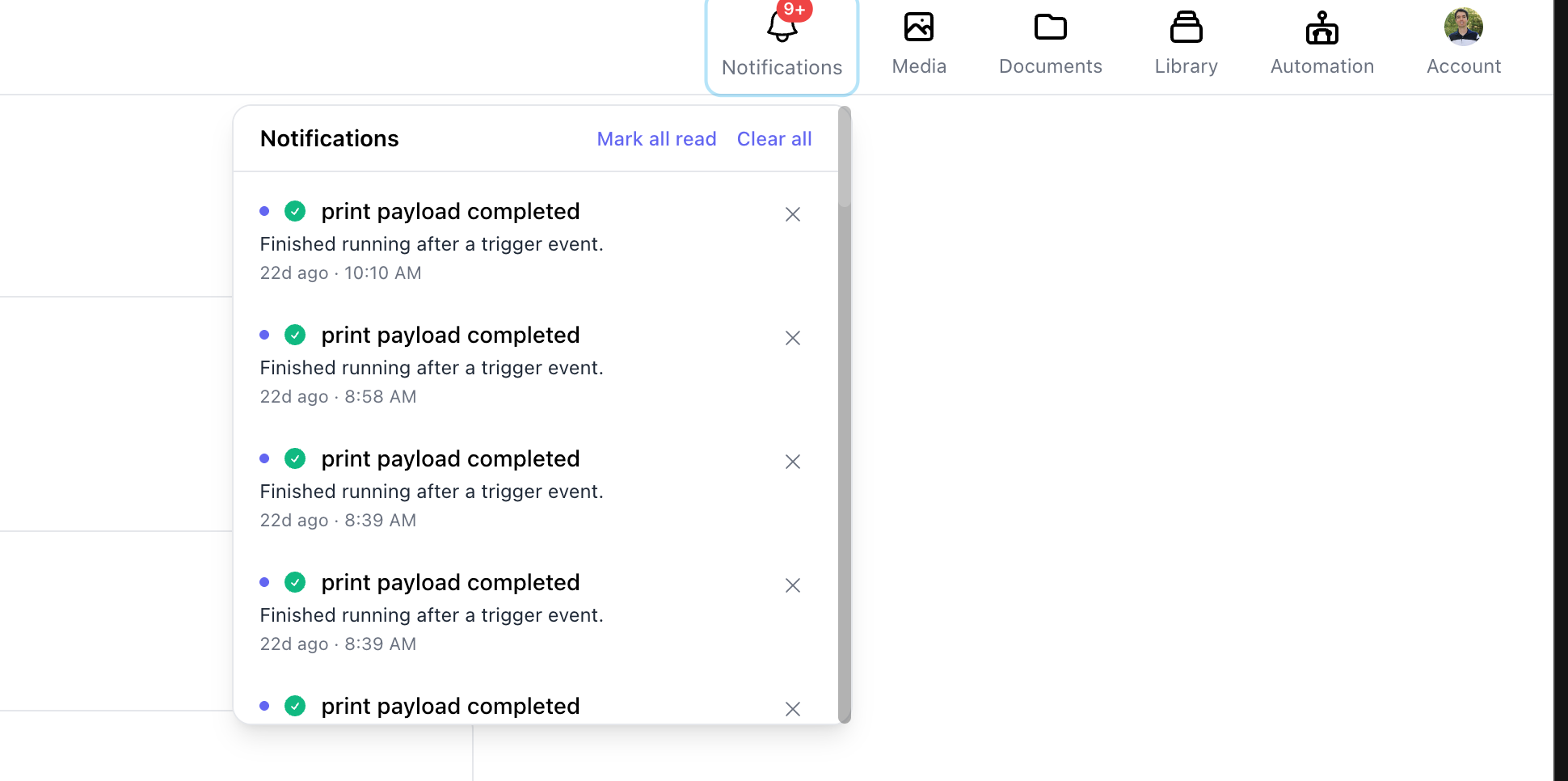
What generates a notification
| Notification | When it fires |
|---|---|
| Job complete | A job finishes successfully |
| Job failed | A job stops with an error |
| Guardrail failed | A job stops because a task output could not satisfy its guardrails |
| App access request | A member asks an admin to approve an integration |
Job notifications matter most for work you are not watching — jobs started by a schedule or a trigger. The notification records which of the two started the run.
Acting on notifications
Selecting a job notification takes you to the run so you can read its output or see where it failed.
Admins can approve or decline an app access request directly from the notification, without opening Organization Settings. See Organization app access.
Clearing notifications
Use Mark all read to clear the badge, dismiss a single notification with its ×, or remove everything with Clear all.
Notifications are kept for 30 days and removed automatically after that.
What's next
- Scheduling — run jobs on a recurring basis
- Triggers — run jobs in response to events
- Organization app access — approve integrations for your organization