Organization app access
Organizations control which integrations their members can connect. Admins approve apps centrally, and members connect only to what has been approved.
This keeps agent access to company systems deliberate — an app nobody approved is an app no agent can act in.
How it works
- Admins approve apps in Organization Settings → Integrations
- Members see approved apps when connecting integrations, and connect them normally
- Members can request apps that have not been approved yet
Approving an app
- Go to Organization Settings → Integrations
- Search for the app you want to make available
- Click Approve
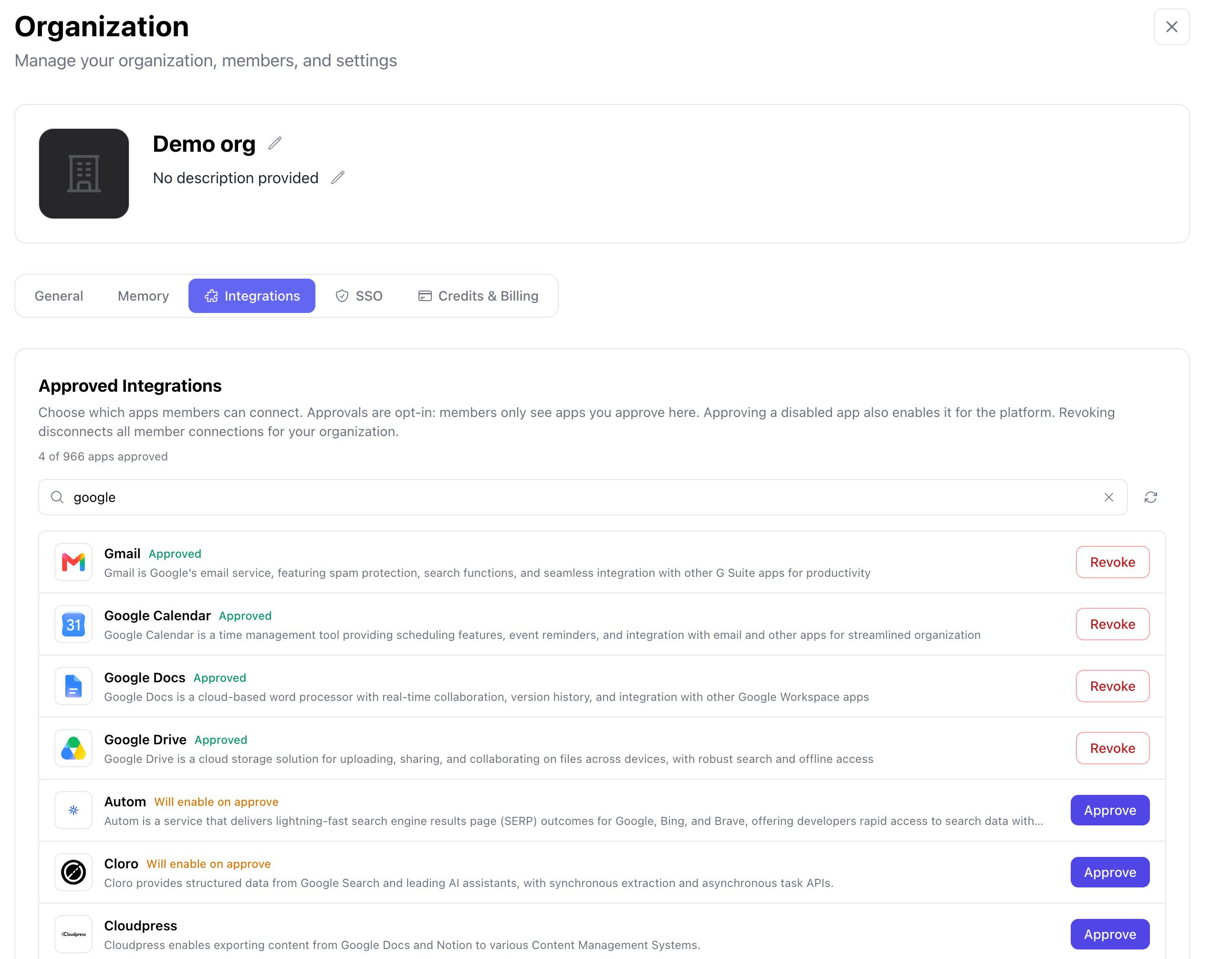
Approvals are opt-in: members only see the apps you approve here. The header shows how many of the available apps you have approved so far.
The app becomes available to every member of the organization. They still connect their own accounts individually — approving an app does not share credentials between members.
Handling access requests
When a member requests an app that is not approved, admins are notified. You can approve or decline the request directly from the notification bell, or from Organization Settings → Integrations.
Approving a request makes the app available to the whole organization, not just the requester.
Requesting an app as a member
If the app you need is not in the list when connecting an integration, click Request access. Your organization's admins are notified and can approve it.
Until an app is approved, it cannot be connected or assigned to an agent.
If you see "Your organization has not approved any integrations yet," no apps have been approved. Ask an admin to approve the ones your team needs.
Revoking an app
Admins can revoke a previously approved app with the Revoke button. Revoking removes it from the approved list and disconnects all member connections to it for your organization.
Any agent or job configured to use tools from a revoked app will fail when it tries to use them. Check what depends on an app before revoking it.
What's next
- Connect an app — connect an approved app and choose its tools
- Single Sign-On — let members sign in with your identity provider
- Notifications — where access requests appear