Connect an app
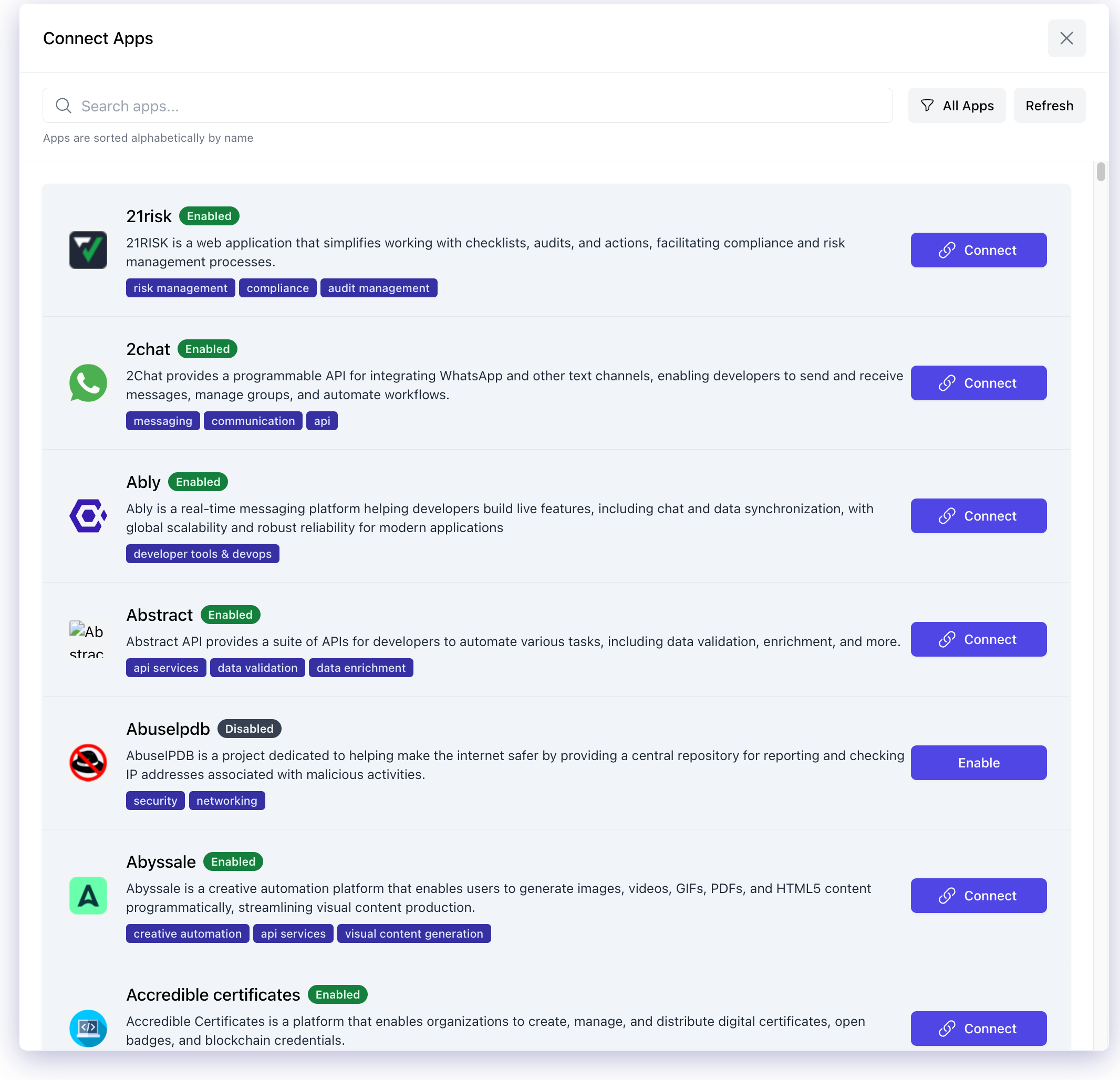
This guide walks you through connecting an application to Ordify so your agents can take action within it. Ordify supports over 900 apps through its Connect Apps marketplace.
Step 1: Navigate to Integrations
- Go to Settings → Integrations in the Ordify app
- Browse or search for the app you want to connect (e.g., Gmail, Google Sheets, Slack, Notion)
Step 2: Authenticate
- Click Connect next to the app
- You'll be redirected to the app's OAuth authorization page
- Sign in and grant Ordify the requested permissions
- You'll be redirected back to Ordify — the app will now show a Connected status
Security note: Ordify uses industry-standard OAuth protocols and partners only with vetted, trusted third-party integration providers. Your credentials are never stored in Ordify directly.
Step 3: Assign the app to an agent
Connected apps are available as tools you can assign to any agent. There are two ways to do this:
During agent creation
- In the Agent Builder, navigate to the Integrations tab
- Find your connected app in the list
- Select the specific tools you want the agent to use
- Click Create Agent when done
By editing an existing agent
- Find the agent in your Library or sidebar
- Click Edit
- Navigate to the Integrations tab
- Enable the tools you want to add
Step 4: Verify it works
Test your agent by asking it to perform a task using the connected app. For example, if you connected Gmail:
"Check my inbox for unread emails from the last 24 hours and summarize them."
If the agent can read your emails and return a summary, the connection is working.
Choosing which tools an agent can use
Connecting an app does not give an agent everything that app can do. When you select an app in the Integrations tab, its individual tools are listed so you can choose exactly which ones this agent is allowed to call.
Each app shows its full tool list with a count of how many are currently selected, plus Select all and Clear shortcuts and a search box for apps with many tools. Tick the tools the agent needs; leave the rest unticked.
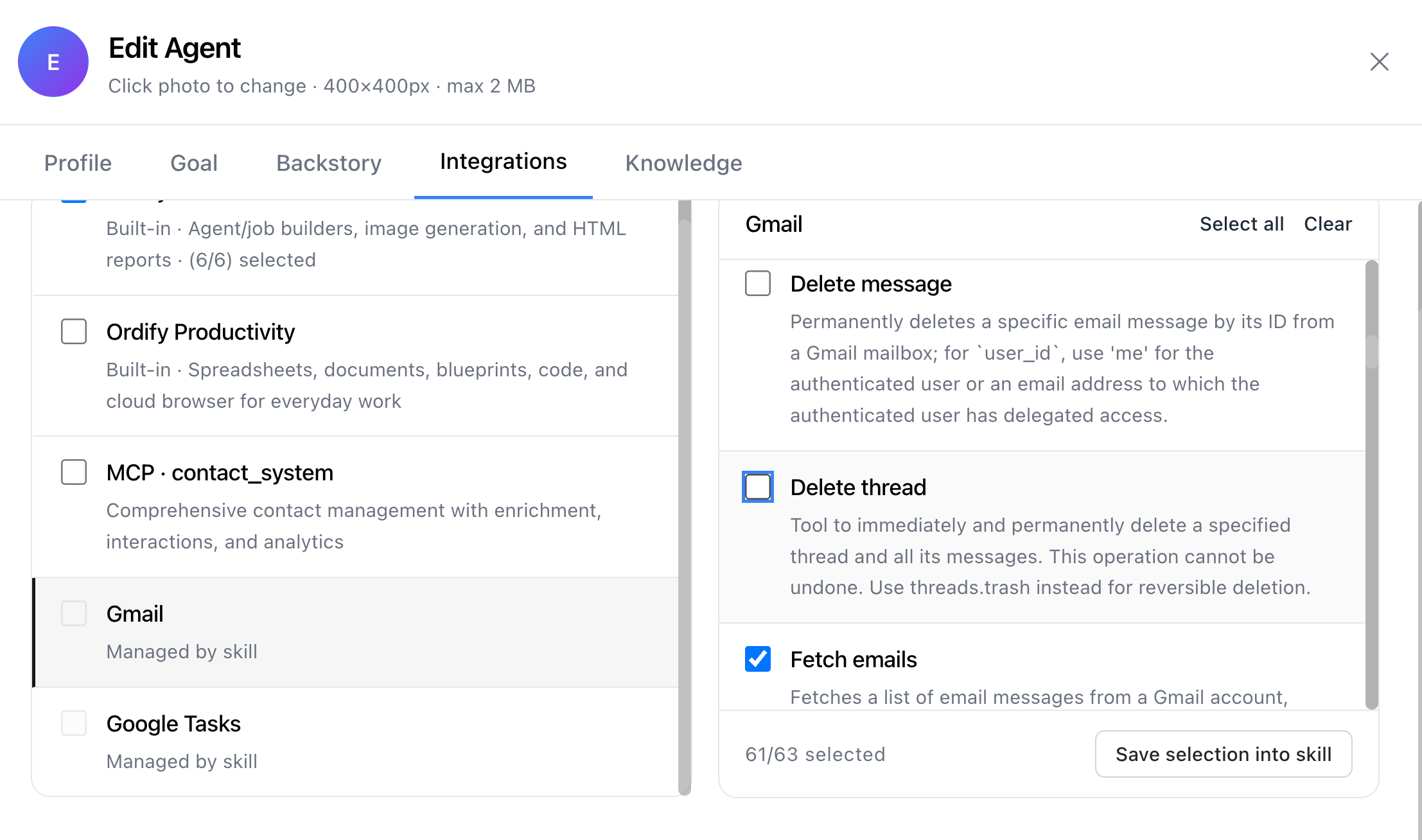
Once you have a selection you want to reuse, Save selection into skill turns it into a skill you can attach to other agents.
Tool selection is enforced when the agent runs — an unticked tool is not available to it, not merely discouraged. This is the most direct way to prevent unintended actions.
Gmail is a good example: an agent that only needs to read and summarize your inbox should have the read and search tools enabled and send, delete, and trash left off. Even if the agent misinterprets a request, it cannot send or destroy anything.
The same tool picker is used when building a Skill, so the selection works the same way in both places.
An app's tools come from the app or from a skill — not both
An agent gets an app's tools either by selecting them directly on the app or through a skill that bundles them. The two are never combined.
When you attach a skill that covers an app, the skill takes over that app for this agent. The app's own tool selection is cleared, and the app is shown as Managed by skill with its checkbox disabled — so the skill is the single definition of what the agent can do there.
To go back to choosing tools directly on the app, remove the skill from the agent.
Choose based on what you need:
- The app — you want to pick the tools yourself, and the agent's own instructions are enough
- The skill — you want the tools to travel with instructions on how to use them, reusable across agents
This is deliberate: if both could apply at once, the two tool lists would silently merge and the agent would end up with tools you did not intend to grant.
Tips
- Assign only the tools you need. The fewer tools an agent has, the faster and more accurate it will be. Use Skills to bundle a focused set of tools with clear instructions.
- Connect apps before creating the agent. Apps must be connected at the account level before they can be assigned to an agent.
- Reconnect if access expires. OAuth tokens can expire. If an agent reports an error accessing an app, go to Settings → Integrations and reconnect.
What's next
- What is a skill — bundle tools into precise, reusable agent capabilities
- Create an agent — build an agent that uses the app you just connected
- What are MCP Servers — for connecting internal or custom systems