Create a job
Jobs are the collaborative engine of Ordify. While a single agent is powerful, a job allows multiple specialized agents to work together as a team to accomplish complex, multi-step objectives.
Jobs are built in the Job Builder — a visual canvas where you can describe the workflow you want in plain language and let Ordify generate the whole pipeline, or build it step by step yourself.
Components of a job
Every job has four key elements:
- Agents: The specialized AI personas (e.g., Researcher, Writer, Reviewer) assigned to the job.
- Tasks: The specific units of work agents need to complete. See Tasks.
- Process: The logic that determines the order of task execution — Sequential or Hierarchical.
- Manager Agent: (Hierarchical only) A specialized agent that oversees the workflow and delegates tasks.
Why use multi-agent jobs
- Complex problem solving: Decompose tasks too broad for a single agent and handle each part with a specialized expert.
- Higher accuracy: Assign a Reviewer or Editor agent to check the work of a Writer agent, significantly improving output quality.
- Autonomous workflows: Once kicked off, agents communicate and hand off tasks among themselves until the overall goal is achieved.
Orchestration styles
Sequential process
Tasks execute one after another in a specific order. The output of one task often serves as the context or input for the next. Ideal for linear workflows like "Research → Draft → Publish."
Hierarchical process
A Manager Agent coordinates the workflow. The manager receives the overall goal, decides which tasks are needed, and delegates them to the most appropriate agents. Better for complex projects where the steps may not be strictly linear.
Opening the Job Builder
From the Library, create a new job or open an existing one for editing. The Job Builder opens full-screen.
Generating a job from a description
When you create a new job, the builder opens on a prompt: Describe Your Workflow.
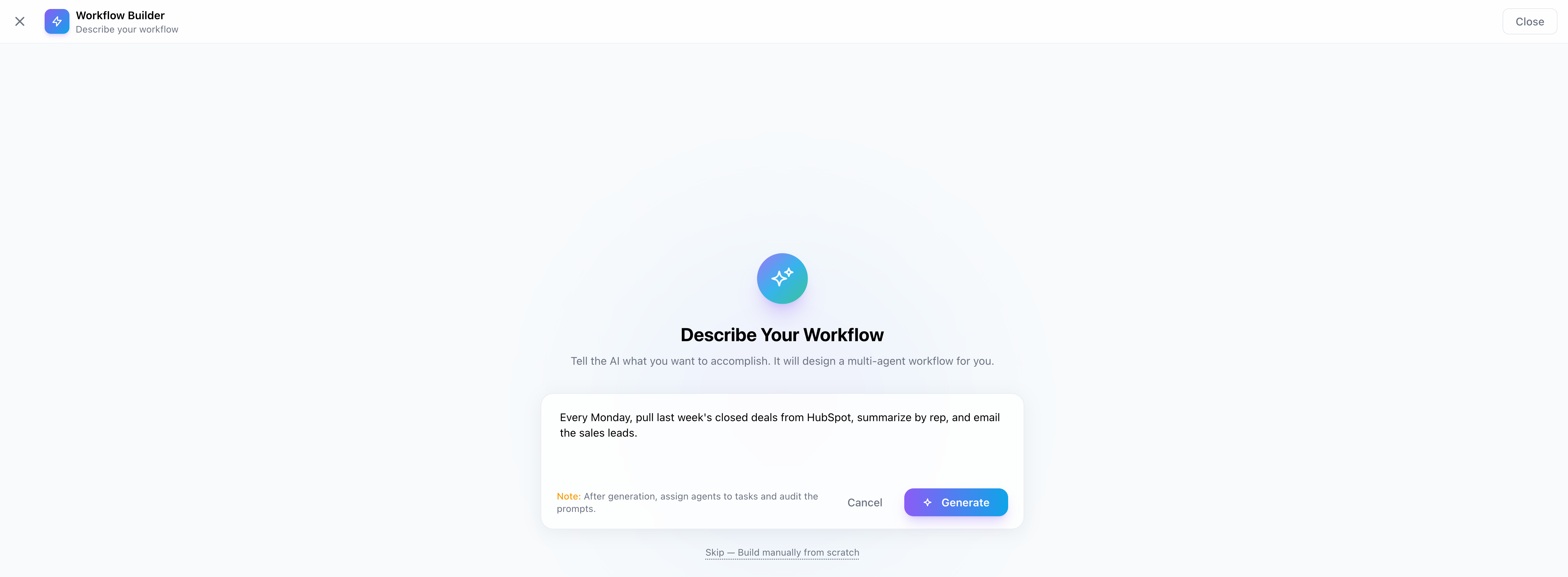
Write what you want the job to accomplish in plain language — as much or as little detail as you like — and click Generate. Ordify produces a complete draft:
- The tasks needed, in order, with their dependencies
- Agent assignments for each task
- Expected outputs for each task
- An input schema — the questions the job asks whoever runs it
- A suggested schedule or trigger, when the description implies one (see Scheduling and Triggers)
The generated pipeline appears on the canvas ready to review, with the header showing Pipeline Ready — Assign Agents to Begin. Nothing is saved until you save it, so you can regenerate or edit freely.
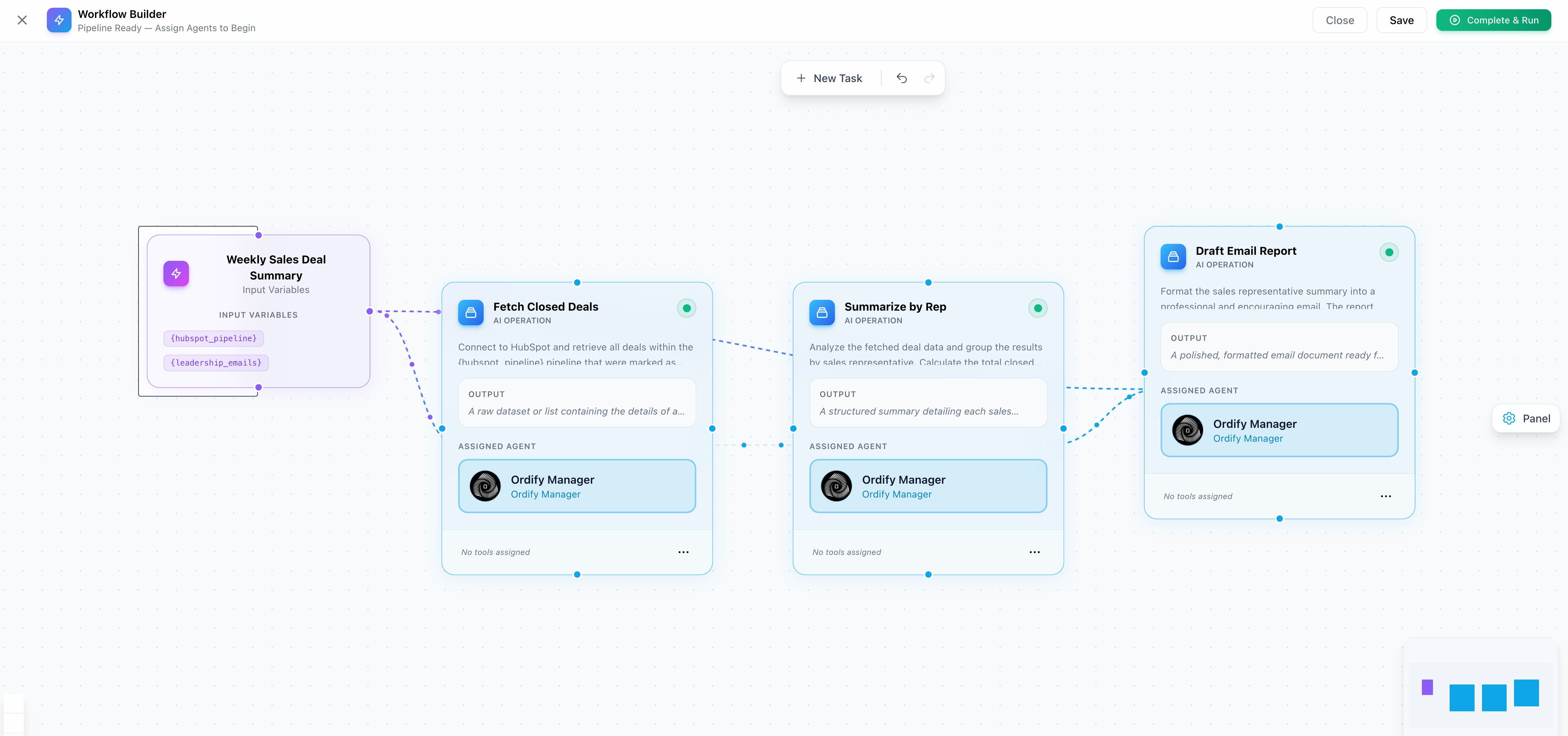
You can also skip generation entirely — Skip — Build manually from scratch — and build the job yourself on an empty canvas.
"Every Monday, pull last week's closed deals from HubSpot, summarize them by rep, and email the summary to the sales leads" produces a better starting pipeline than "make a sales job." Mentioning the timing also lets the builder suggest the schedule for you.
You can also create a job by asking for one in chat — an agent with the Ordify Default tools can draft a job for you and save it once you approve.
The canvas
The job is shown as a pipeline of connected nodes:
- Input — the values the job collects before it runs
- Task — a unit of work handled by an assigned agent
- Human Review — a pause for a person to review or approve before the job continues
- Output — the job's final result
Connect nodes by dragging between them to define which task feeds into which. The canvas rejects connections that would break execution — self-loops, circular dependencies, and connections out of an output node.
Select any node to open its properties panel, where you can edit its description, expected output, assigned agent, tools, and guardrails.
Toolbar
- New Task — adds another task to the pipeline
- Auto-select agents — matches the best available agent to each task automatically
- Undo / Redo —
Ctrl+ZandCtrl+Shift+Z - Save — saves the job
- Complete & Run — saves and runs the job immediately
Guardrails
Guardrails are plain-language rules that a task's output must satisfy. Open a task's Task properties panel, scroll to Guardrails, and click + Guard to add one.
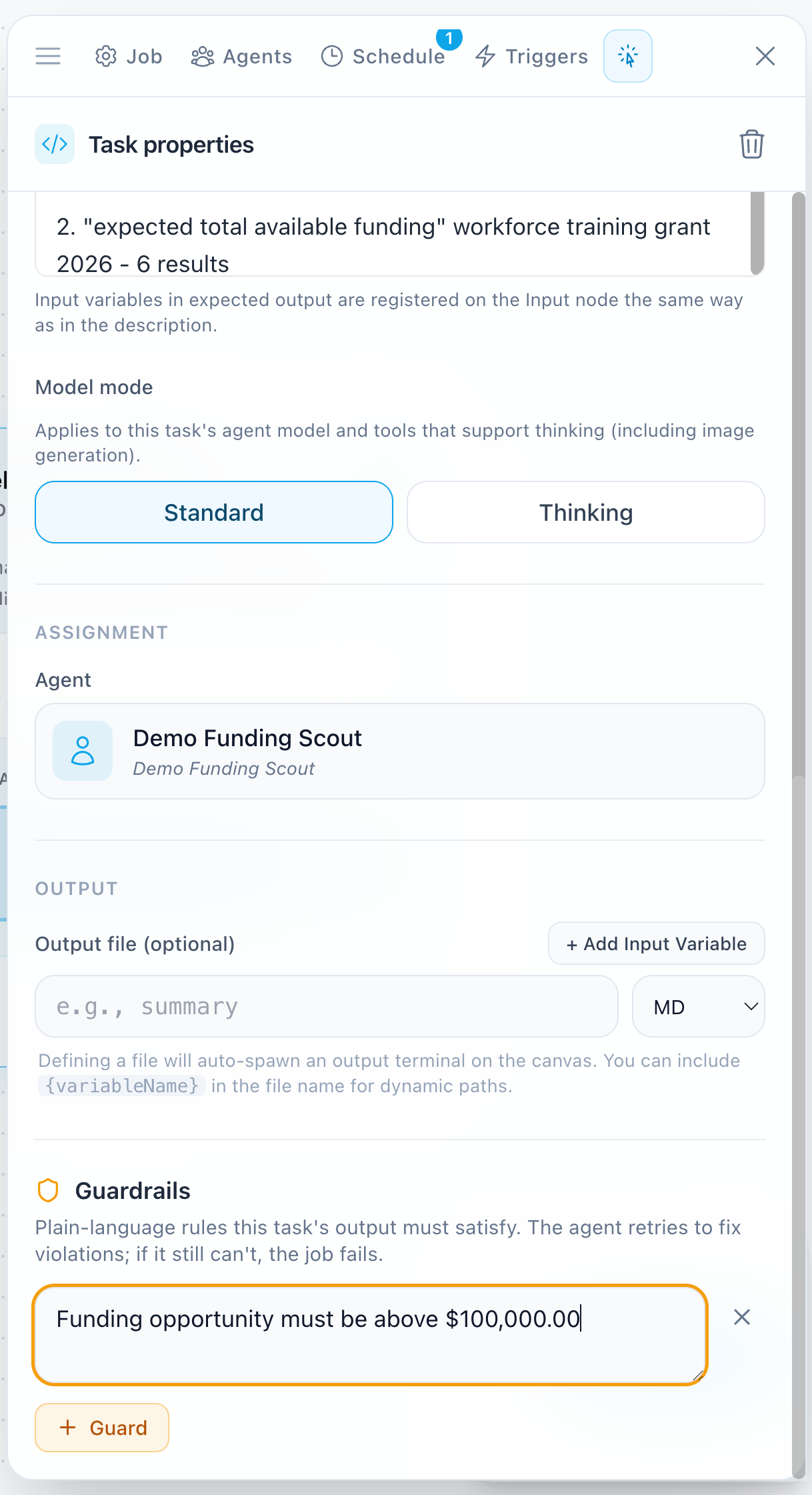
When a task's output violates a guardrail, the agent retries to fix it. If it still can't satisfy the rule, the job fails rather than passing bad output downstream. This makes guardrails a good fit for requirements that matter more than completion — compliance language, required disclaimers, format rules, or facts that must be present.
Keep each guardrail to a single, checkable statement. Several focused rules work better than one long paragraph.
Schedules and triggers
The builder's side panel has Schedule and Triggers tabs, so you can automate the job without leaving it:
- Schedule — run the job on a recurring basis (hourly, daily, weekly, monthly, or once), with a start and end date, time, and timezone
- Triggers — run the job in response to an event in a connected app
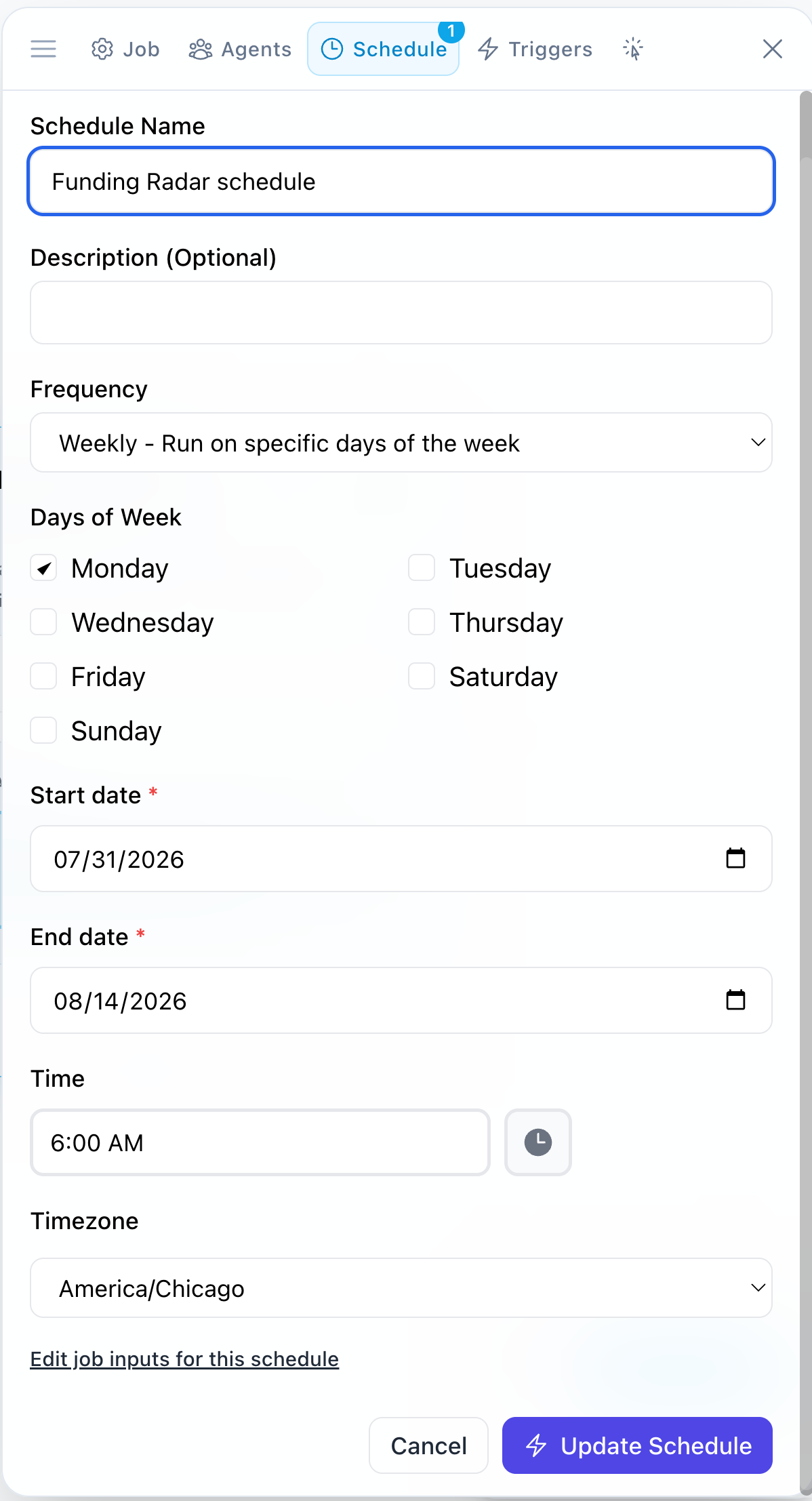
If your description implied automation, the builder pre-fills its suggestion here for you to confirm or adjust — a badge on the tab shows when something is waiting for review. Automations you set up are saved together with the job.
See Scheduling and Triggers for the full detail on each.
Job configuration
The job configuration panel holds settings that apply to the whole job rather than a single task:
- Name and description
- Process — sequential or hierarchical, as described above
- Department — the department this job belongs to
- Input schema — the inputs the job requests when it runs
- Description for agents — how the job describes itself to a department agent that can invoke it
Jobs in the Library
Find pre-built job templates in the Public Library or manage your own in My Library.
- Public Jobs: Community-proven workflows for common business needs.
- My Jobs: Custom workflows you've built and configured for your specific requirements.
Running and automating jobs
Once a job is built you can:
- Run manually: Trigger the job on-demand and provide any required inputs.
- Schedule: Set it to run automatically on a recurring basis. See Scheduling.
- Trigger: Launch it automatically based on events. See Triggers.
- Agent-invoked: Assign the job to a department so that department's agent can run it from a conversation.
What's next
- Tasks — write task descriptions and expected outputs
- Scheduling and Triggers — automate the job you just built
- Departments — organize jobs once you have several