Departments
Departments are organizational units that group related jobs and agents together. As your library grows, departments provide structure — making it easier to browse, manage, and delegate work at scale.
Each department can also have a department agent assigned to it. That agent automatically gains access to every job in the department, so it can run departmental work on your behalf from a conversation. See Head of Department.
What a department contains
A department is a named container for the jobs and agents that share a common function, team, or domain. For example:
- Sales — lead qualification jobs, outreach sequences, CRM update workflows
- HR — onboarding jobs, policy Q&A workflows, performance review processes
- Operations — data processing jobs, report generation, maintenance workflows
- Engineering — code review jobs, incident response workflows, documentation generators
Why use departments
- Discoverability: Team members in Sales find Sales jobs immediately — they don't need to search through unrelated workflows.
- Delegation: A single department agent can be assigned to a department and automatically gains access to all jobs within it.
- Organization at scale: As the number of jobs grows, departments prevent the Library from becoming an unmanageable flat list.
- Access structure: Departments create a natural boundary for controlling which agents and users interact with which workflows.
The Departments board
Departments are managed on a drag-and-drop board in the Library.
- Navigate to Library
- Open Departments under Command Center in the sidebar
Each department appears as a column, with the assigned department agent shown in its header. An Unassigned column holds everything that has not been placed in a department yet.
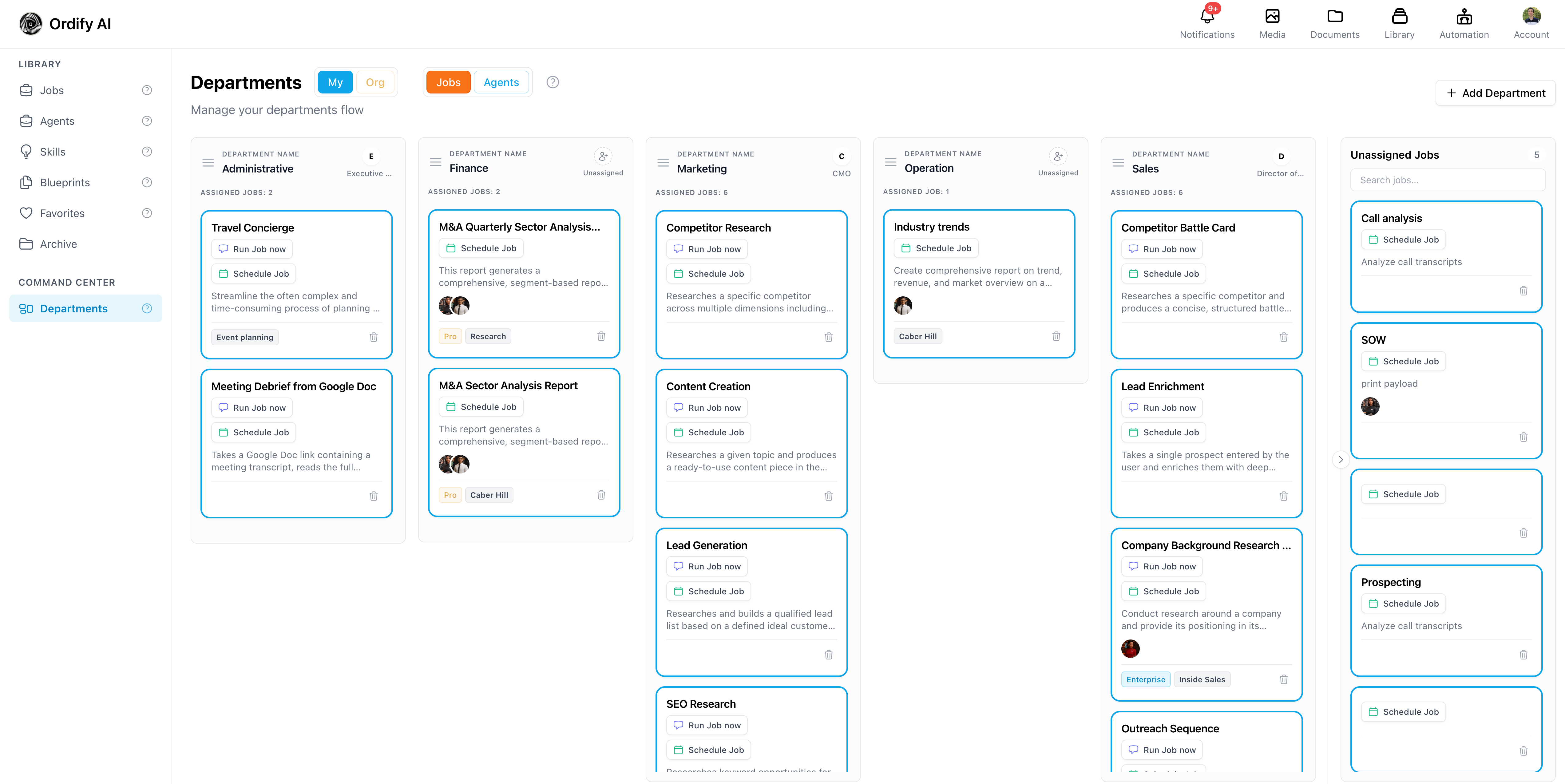
Jobs and Agents boards
The board has two modes, toggled at the top:
- Jobs — shows the jobs in each department
- Agents — shows the agents that belong to each department
Both boards share the same department columns. Switching modes changes what you are organizing, not which departments exist.
Scope
Use the scope selector to switch between:
- My — departments you created for your own jobs and agents
- Org — departments shared across your organization
Organization departments can only be created, renamed, deleted, or reassigned by an organization admin. All members can view them.
Creating a department
- Open the Departments view in the Library
- Click Add Department
- Enter the department name (e.g., "Customer Support")
The department appears as a new column, ready to receive jobs and agents.
Adding jobs and agents to a department
On the board, drag a card from the Unassigned column onto the department column where it belongs. The change saves immediately.
To remove something from a department, drag it back to Unassigned.
A job or agent belongs to only one department at a time.
Adding an agent to a department's Agents board groups it for organization only — it does not grant that agent access to the department's jobs. Only the assigned department agent inherits job access. See Head of Department.
Setting a job's department elsewhere
A job's department can also be set from the job itself, in the Job Builder configuration panel. The Department field is a picker that selects from existing departments; create the department on the board first.
Managing departments
Each department column header offers:
- Rename — renames the department and updates every job and agent assigned to it
- Reorder — drag column headers to change the order; your ordering is remembered
- Search — filter the cards within the board
- Delete — removes the department
When you delete a department, every job and agent in it returns to the Unassigned column. Nothing is deleted. You can then reassign them to another department.
What's next
- Head of Department — assign an agent that automatically inherits access to all jobs in a department
- What is a job — understand jobs before organizing them into departments
- Create a job — build the jobs that fill your departments
- Library — see how departments appear in the Library interface