Scheduling
Automation in Ordify runs in two modes: scheduling (time-based) and triggers (event-based). Scheduling lets you run jobs automatically at specific times or on a recurring basis — perfect when you know when something needs to happen, even if the exact content varies each run.
Once your apps are connected, you can set up scheduled automations that run without any manual intervention.
When to use scheduling
- Routine reports — generate and send daily or weekly summaries automatically
- Regular maintenance — clean up data, archive old files, or update databases on a schedule
- Predictable tasks — process invoices on the 1st of each month, send reminders every Monday, or run backups every night
- One-time events — execute a job at a specific future date and time
Scheduling is your reliable automation workhorse for predictable, time-dependent workflows.
How to schedule a job
- Click on Automation → Scheduled Jobs
- Click Create Schedule
- Select a job and configure any required inputs
- Configure the schedule (frequency, time, timezone)
- Click Create Schedule to finalize
Jobs can run hourly, daily, weekly, monthly, or once at a future date and time.
Scheduling from the Job Builder
You can also set a schedule while building the job, without going to Scheduled Jobs at all. Open the Schedule tab in the Job Builder side panel and configure it there — the schedule is saved together with the job.
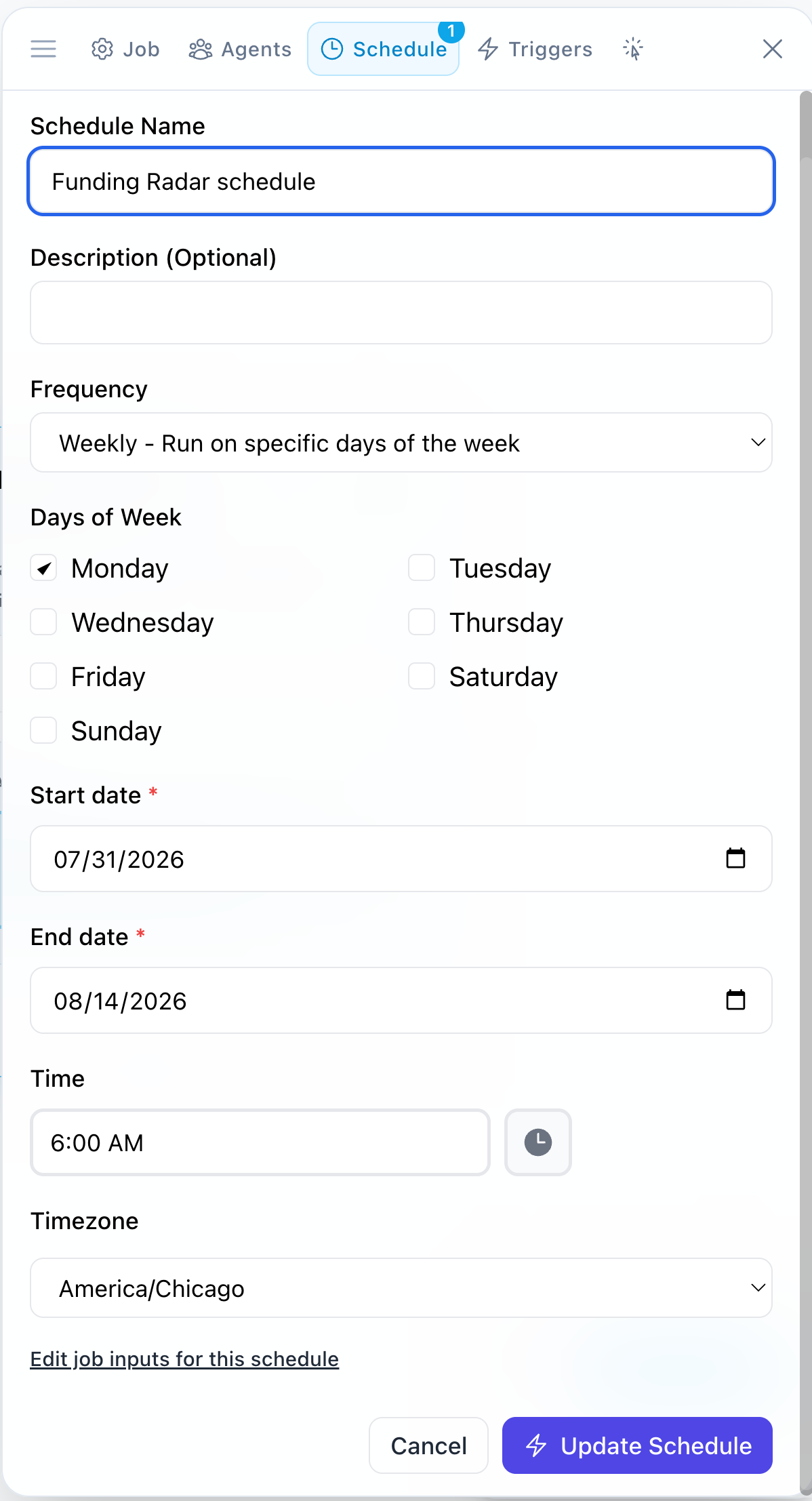
If you mention timing when describing a job — "every Monday morning," "on the first of the month" — the builder proposes a matching schedule with the generated pipeline. Confirm or adjust it instead of setting it up from scratch.
Knowing when a scheduled run finishes
Scheduled jobs run whether or not you are in the app, so their results arrive through notifications. You get a notification when a run completes or fails, and it records that a schedule started the run.
What's next
- Triggers — launch jobs based on real-time events instead of a schedule
- Create a job — set schedules while building the job
- Notifications — see when scheduled runs complete or fail
- Connect an app — connect the apps your scheduled jobs need access to